
Seedance video generation is live
AI video editor that edits by chat, not by timeline
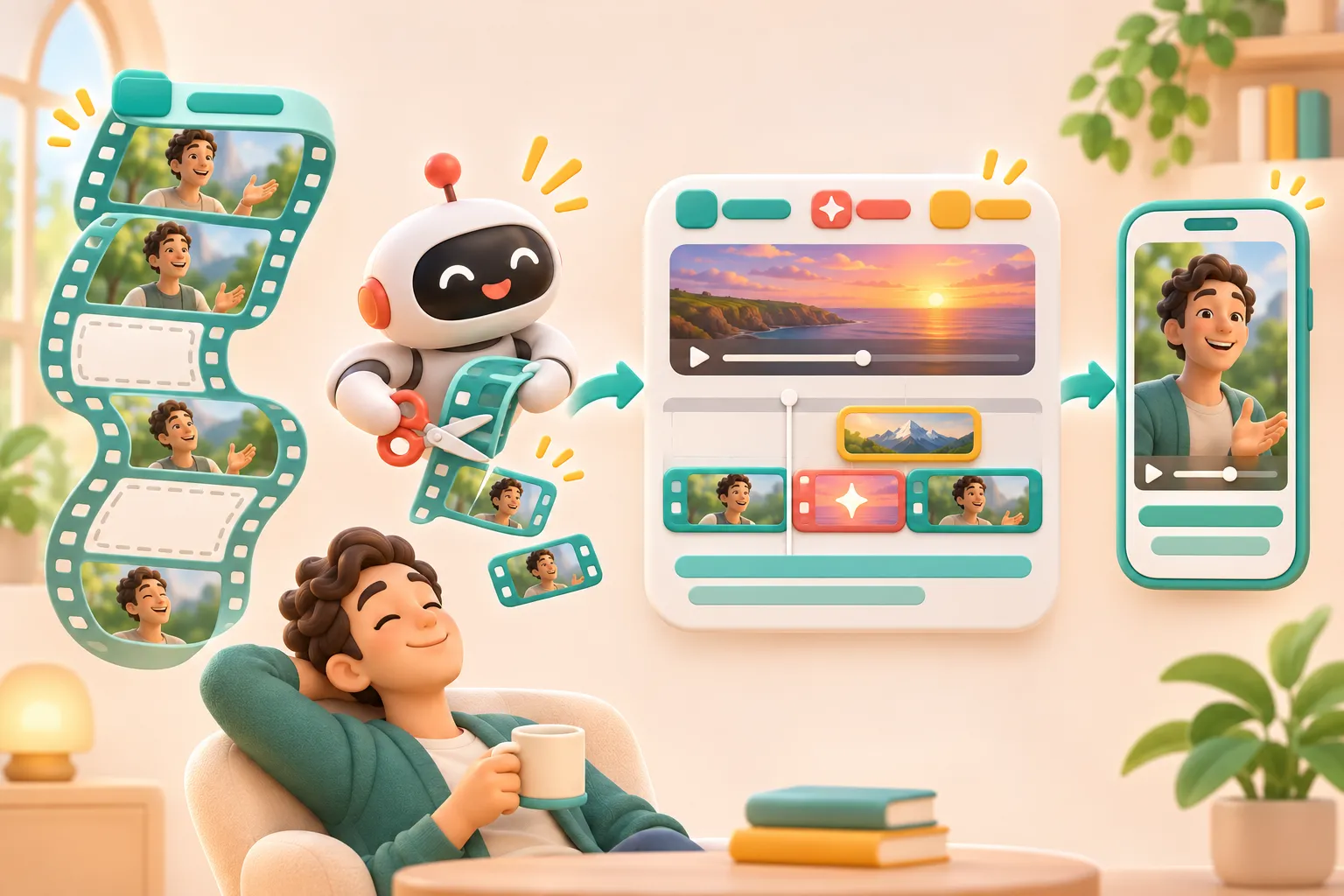
Drop in raw clips, a screen recording or a long talk and say what the video is for. The agent picks the best takes, cuts the dead air, adds captions and b-roll, and shows you a 10-second preview before rendering the full edit.
What you bring
- Raw footage: talks, interviews, phone clips or screen recordings
- What the video is for, how long it should be and where it will run
- Optional: logo, font, brand colors, an edit you like
What you get
- A cut built from your best takes, with pauses and retakes removed
- Captions, titles and b-roll on their own tracks, easy to change
- Versions sized for wide, square and vertical feeds
Inside the edit
What the AI video editor does to your footage
Finds the best takes
It transcribes the footage, compares repeated lines and keeps the cleanest take of each, so false starts and flubbed sentences drop out.
Cuts dead air and filler
Long pauses, "um"s and off-topic stretches are trimmed. You decide how tight: a natural pace for a talk, a fast one for a social clip.
Adds captions from the transcript
Captions follow the audio and use your font and colors. Fixing a word is a one-line request.
Fills gaps with b-roll
When the speaker mentions something there is no shot of, the agent suggests a stock clip or a Seedance 2 shot and marks it in the plan for you to approve.
Reframes for every platform
Wide footage is reframed to vertical and square while keeping the speaker or the important part of the screen in view.
Takes notes in plain words
"Start with the demo", "remove the part about pricing" or "bigger captions" change that part of the edit and leave the rest alone.
How it works
From brief to final cut, with two checkpoints
- 01
Brief and material
Say what the video is for, who will watch it, how long it should be and where it will run. Add footage, screenshots, a logo or a reference video, or start from text alone.
- 02
Shot plan and credit estimate
You get a shot-by-shot plan that marks each shot as your footage, a generated clip or stock, with the script and the credits it will use. Change anything before rendering starts.
You approve - 03
Approve the first 10 seconds
The opening renders first so you can check pace, look and sound. Approve it, or say what to change and get a new take.
You approve - 04
Full render, edits by chat
The rest follows the approved style. Ask for changes in a sentence, such as a tighter intro, a different shot 4 or bigger captions, and only that part changes.
Choosing a tool
AI video editing or a timeline editor?
A timeline editor gives you full control over every frame, and that is the right choice for a film with a precise look or an editor who enjoys the craft. The cost is time: a 20-minute recording can take hours to cut into a tight 3-minute video.
An AI video editor makes the decisions for you and lets you correct them in words. It fits recurring work where speed matters more than a signature style: weekly talks, product walkthroughs, interview clips and social cut-downs. If the rough cut is the slow part of your week, that is the part to hand over.
Good fits
Talks and podcasts
A long recording becomes a tight edit plus a set of vertical clips.
Tutorials and demos
Screen recordings cut to the steps that matter, with zooms and captions.
Social cut-downs
One source edit recut for Reels, Shorts and TikTok.
Questions
How do I edit a video with AI?
Upload your footage, say what the video is for and how long it should be, and the agent proposes a cut as a shot plan. Approve or change the plan, check the 10-second preview, then render the full edit. Changes after that are made by describing them.
Can it remove pauses and filler words automatically?
Yes. Pauses, filler words and repeated takes are found from the transcript and cut. Tell it how tight you want the pace, and point out anything it removed that should stay.
What kind of footage can I upload?
Camera and phone clips, screen recordings, interviews and recorded talks. Several clips can go into one project, and the agent treats them as one pool of material when it plans the cut.
Will it add captions?
Yes. Captions are created from the transcript and styled with your font and colors. You can correct a word or change the style in chat without changing the cut.
Can it turn a horizontal video into vertical clips?
Yes. Ask for vertical or square versions and the agent reframes each shot to keep the speaker or the key part of the screen in view, and can pick shorter highlights for social clips.
Is it an auto video editor, or can I control the cut?
Both. The agent makes the first cut automatically, but nothing renders until you approve the shot plan and a preview, and every change after that is yours to request.
Do I need editing experience?
No. You review a plan and a preview in plain language. If you do edit, you can hand over the first rough cut, which is usually the slowest part of the job.
Keep exploring
Hand over the raw footage
Generate your first Seedance video now. The full agent workflow is opening in stages.